Creating a standout presentation doesn’t have to feel overwhelming. Whether you’re struggling to start, figuring out how to plan, or just looking for ways to refine your design, the key is to take it step by step. In this blog post, we’ll break it down into three actionable parts:
No matter where you are in the process, these practical tips will help you work smarter, not harder, to create a presentation that wows your audience. Ready to level up your slide game? Let’s dive in!

Starting is always the hardest part, especially when faced with a blank screen. But even the most polished presentations began with a simple idea. Here’s how you can turn hesitation into action and take the first steps toward creating something impactful.
Great presentations are born from brainstorming. Dedicate time to let your creativity flow:
The thought of designing an entire presentation can be daunting, but breaking it into smaller tasks makes it manageable:
When it’s time to focus, create a space where you can work uninterrupted:
Every big project starts with a small step. Take the leap—brainstorm, plan, and get to work. You’ll find momentum in action.
Every slide should work toward a clear goal. Ask yourself:
Tailoring your presentation to your audience is critical. Consider:
A strong outline keeps your message clear and engaging:
A well-planned presentation is half the battle. Define your goals, understand your audience, and create a logical flow to deliver a message that resonates.
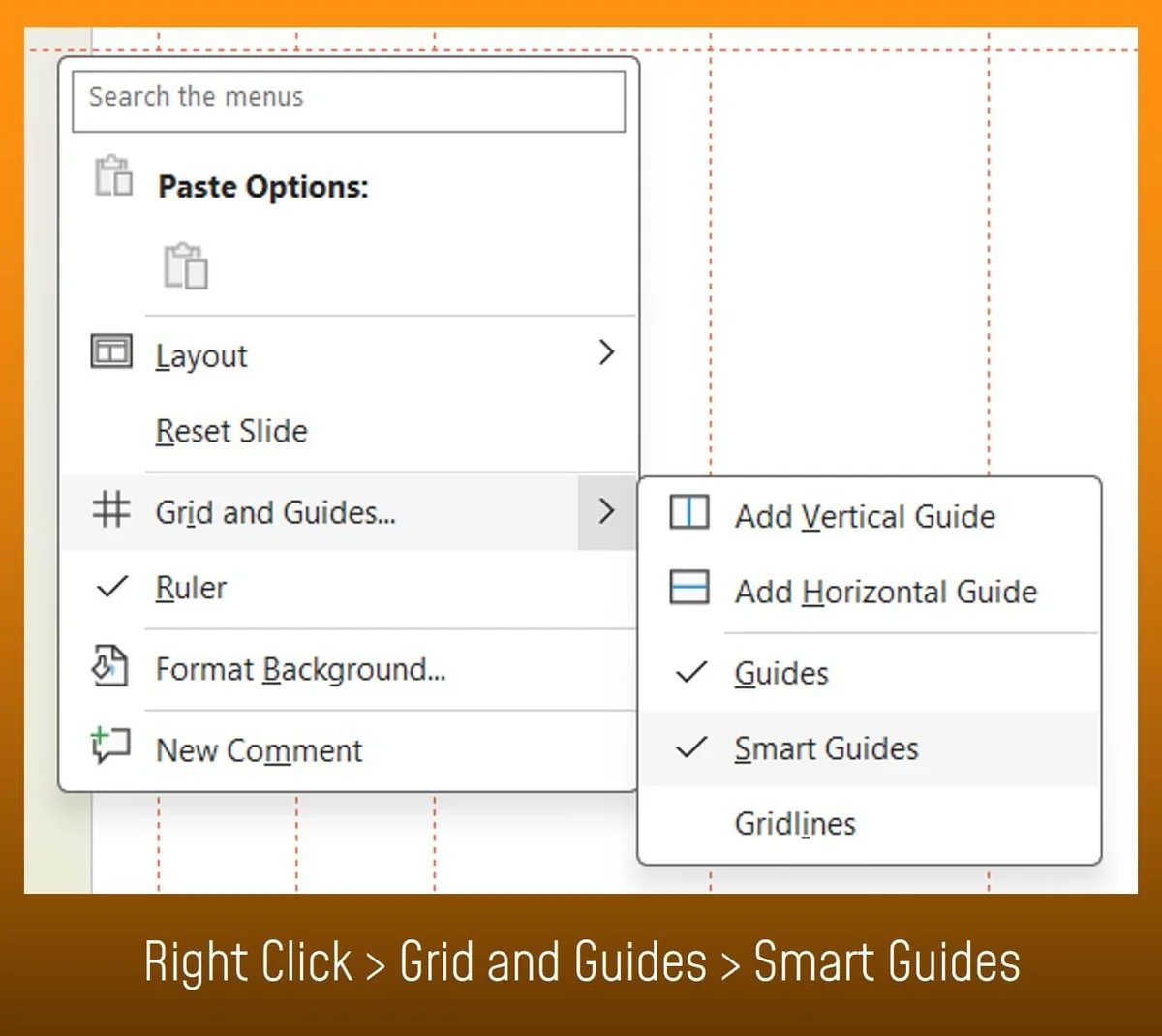
Ever struggled with alignment? Smart Guides automatically snap your elements into place as you move them. This ensures perfect spacing and alignment, giving your slides a clean, professional look. (Right click -> Grid and Guides -> Smart Guides)

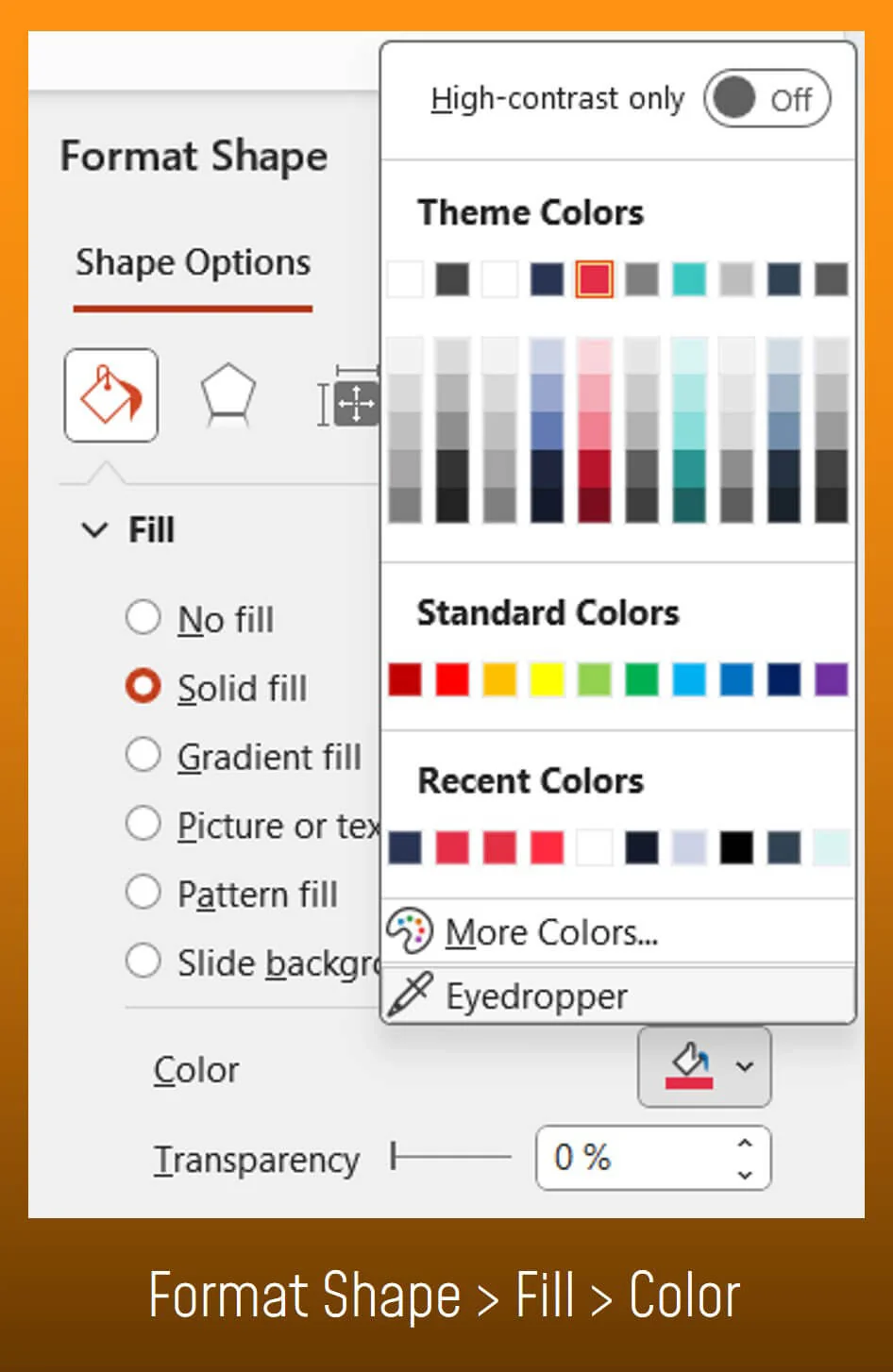
Consistency is key in slide design, and color is no exception. The Eyedropper tool lets you match colors exactly—perfect for aligning visuals with your brand or theme. (Fill -> Color -> Eyedropper)


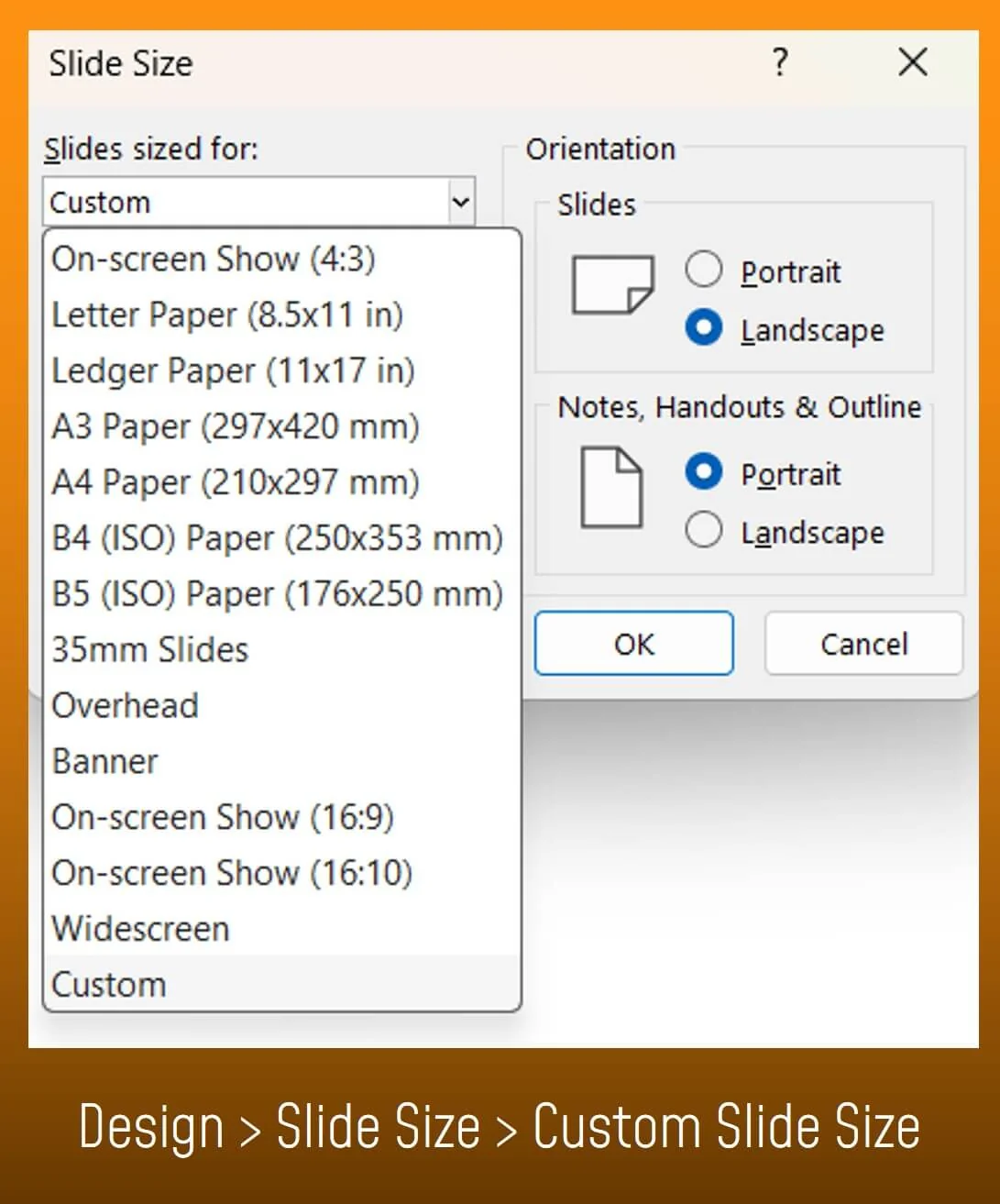
Custom Slide Sizes: Tailor your presentation dimensions for different formats, such as widescreen or print.

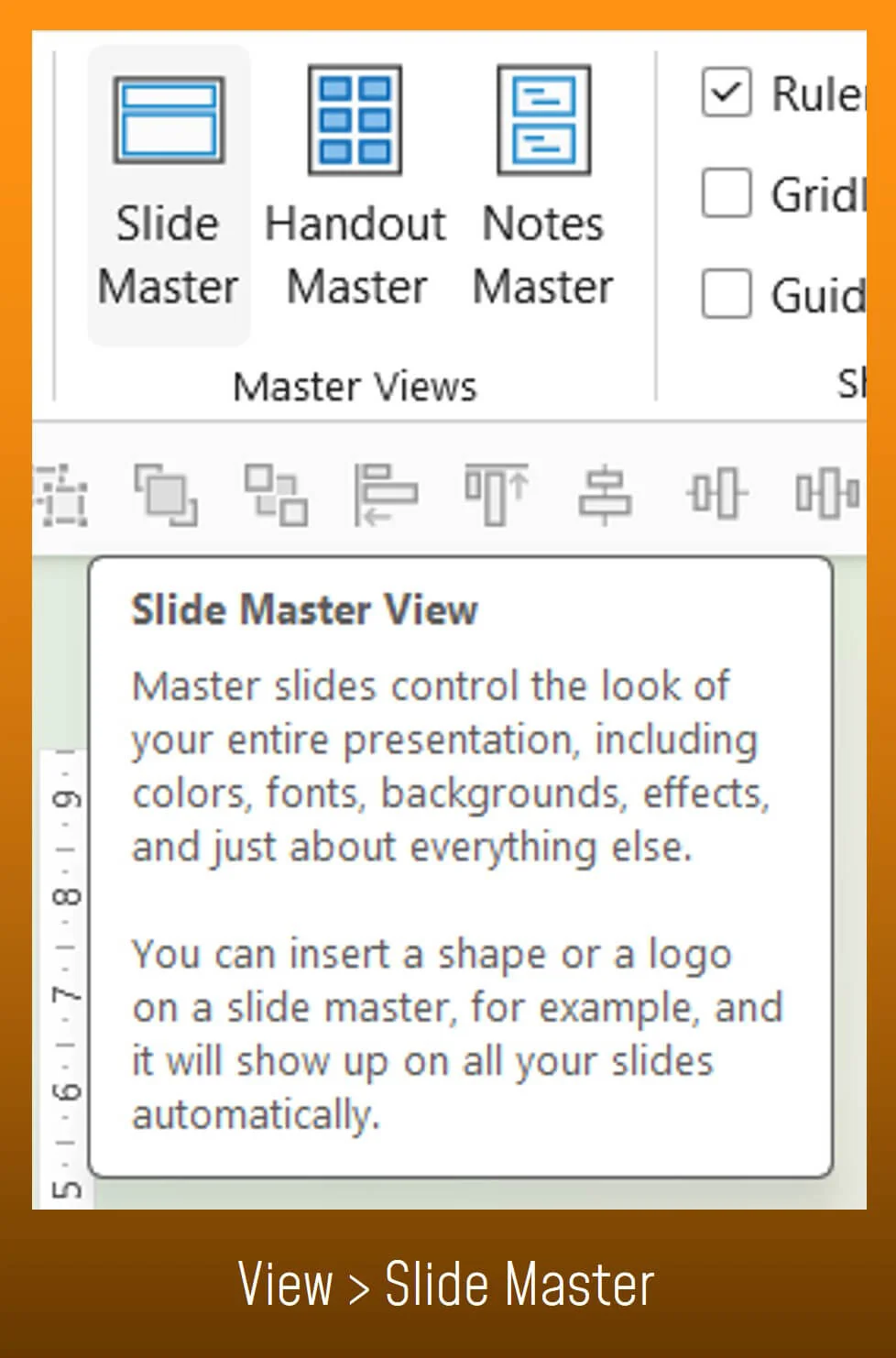
Slide Master: Use this feature to create consistent layouts across your entire deck.

With this article, we would like to provide you with a guide for creating your presentation. If you would like further support or have any questions, please feel free to contact us at any time. We look forward to hearing from you.